
Client groups
Keep each client's channels together — and let clients connect their own accounts with a secure link.
Publishing for several brands or clients? Client groups keep each client's channels together, focus the rest of the app on one client at a time, and let a client connect their own account without ever sharing a password.
Create and manage groups
Click Client groups at the top of Connections. Group names are unique inside the organization.
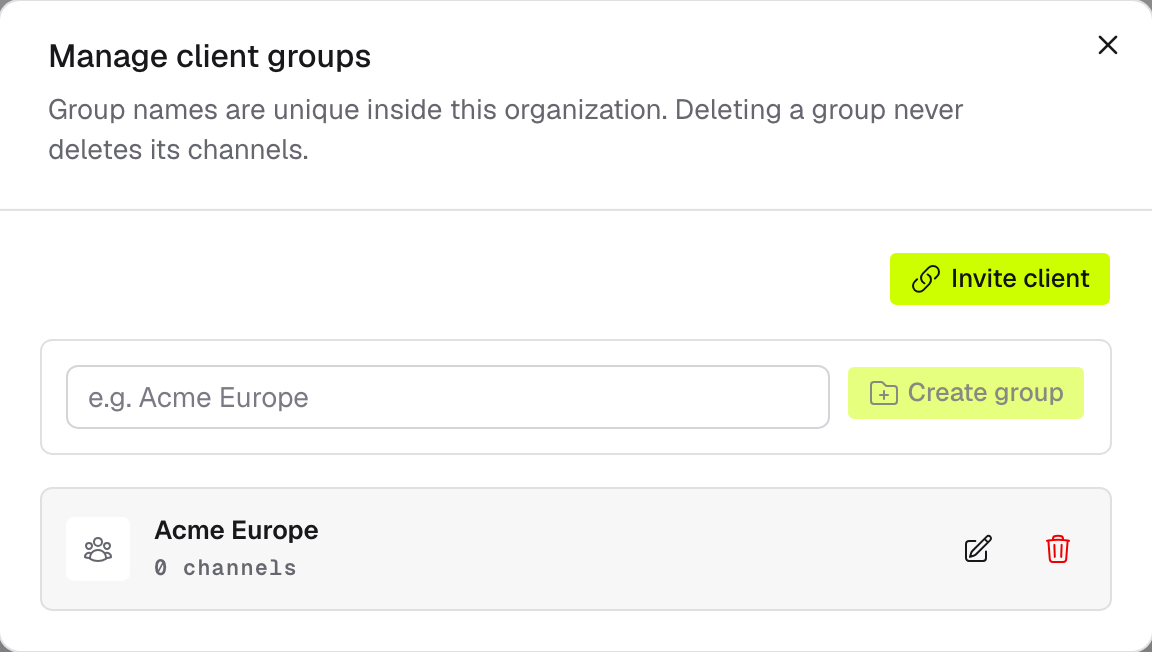
- Create group — name it after the client ("Acme Europe").
- Rename a group inline; each row shows how many channels it holds.
- Deleting a group never deletes its channels — they just become unassigned.
Then assign a client on each account row in the connection cards — one channel belongs to at most one group.
Filter by client
Group pills filter views, they never disconnect anything:
- On Connections, pills narrow the account list; Unassigned shows channels that still need a client.
- The same pills appear in the composer to filter channel choices.
- The calendar can filter by client group too.
- Over the REST API, connections carry
their
group, andgroupIdscopes a listing to one client.
Let a client connect their own channel
Need a channel you don't have credentials for? Send the client a secure link — they authorize their own social account, and EveryFeed never asks you to collect or share their password.
In Manage client groups, click Invite client.
Label the contact ("Acme marketing"), pick which group the connected channel should join (or leave it unassigned), and choose when the link expires — 24 hours, 3 days, or 7 days. Click Create link.
Copy the secure link and send it to your client — the full link is shown only this once.
The client opens the link, picks the platform, and signs in on the platform itself. The channel appears in your workspace, already assigned to the group.
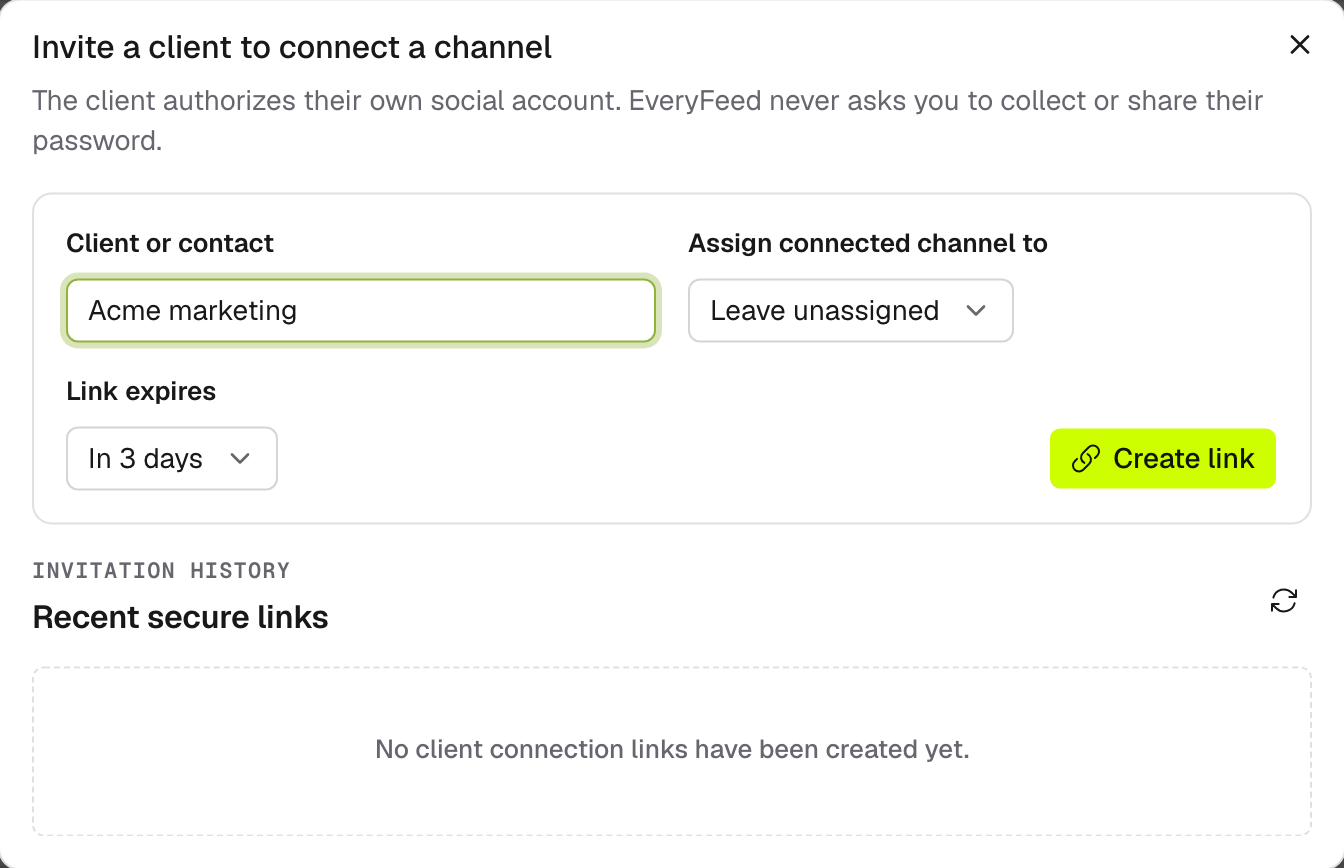
Recent secure links tracks every invitation — Active, Authorization started, or Channel connected — with a Revoke action while the link is live. Links expire on their own and are consumed as soon as the client starts authorizing. Creating and revoking invitations is admin-only.