
Use EveryFeed with ChatGPT
Connect EveryFeed to ChatGPT and manage social content in natural language.
ChatGPT connects over MCP — nothing to install on your machine. Once connected, you do not need to call MCP tools yourself. Ask ChatGPT for what you want in natural language; it uses EveryFeed behind the scenes. (Not sure which connection fits your setup? See which connection do I need.)
Connect ChatGPT
In EveryFeed, open Settings → Developers → Access. Under MCP Client Configuration, keep OAuth (Recommended) selected and copy the MCP server URL.
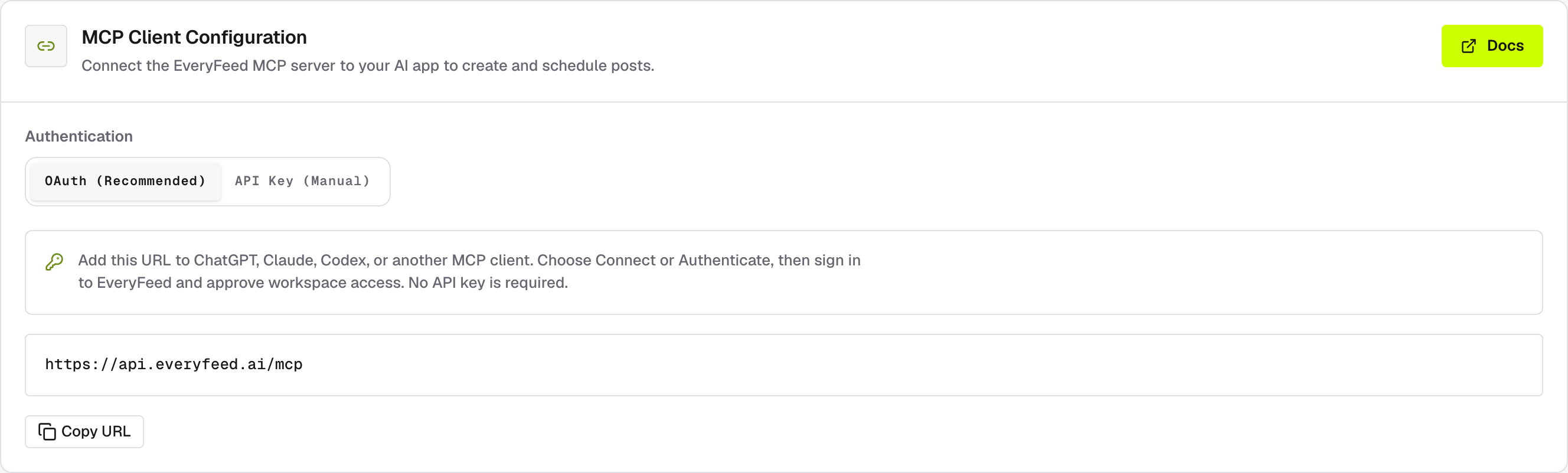
In ChatGPT, open Settings → Connectors and add EveryFeed with that URL, then choose Connect. Sign in to EveryFeed and approve access for the workspace you want — no API key is required.
Start a new ChatGPT conversation and ask it to list your EveryFeed channels. If it cannot access the EveryFeed tools, reconnect and approve access again.
Why is OAuth the only path here?
The other options on the Access page don't apply to ChatGPT: the CLI & AI Skills flow needs an agent that can run terminal commands, and the API Key (Manual) configurations target desktop clients that can send custom headers — ChatGPT's connector UI supports neither. Using a coding agent instead? See use EveryFeed with coding agents.
What to ask
List my connected channels in EveryFeed.Prepare a LinkedIn launch post in EveryFeed. Do not publish it yet.Adapt this copy for LinkedIn and X, then validate both drafts: [paste copy]Schedule the approved post for tomorrow at 10:00 in Europe/Istanbul.Show me the status of my recent EveryFeed posts.Generate an image for this post in EveryFeed and attach it: [describe the image].Import this image or MP4 into EveryFeed from a URL and attach it: [paste URL].Generate a short video in EveryFeed for this post, then attach it once ready.Turn this into a 3-post thread for X in EveryFeed, then validate it.Find the next available slot and schedule the approved post there.For a client-specific request, include the client group name. For scheduling, include an exact date, time, and time zone whenever possible. AI image and video generation run only after you confirm and use your organization's AI allowance; video is prepared in the background and attached when it is ready.
Review and approval
ChatGPT resolves the connected channels, checks each provider's rules, and validates the draft. Before creating an immediate or scheduled post, it shows the destination channels, copy, media, publishing mode, exact time and time zone, and short-link behavior.
Nothing is created until you explicitly approve that exact review. If anything changes, ChatGPT validates the new version and asks for a fresh approval.
Never paste an access token into ChatGPT
ChatGPT connects through OAuth — no key changes hands. If your workspace API key ever appears in a screenshot, message, log, or public file, rotate it in Settings → Developers → Access.