
Use EveryFeed with OpenClaw
Give OpenClaw the EveryFeed skill and CLI to create and schedule posts.
OpenClaw runs the EveryFeed CLI through the skill — install once, then just tell it what you want in natural language. (Not sure which connection fits your setup? See which connection do I need.)
Connect OpenClaw
In EveryFeed, open Settings → Developers → Access and find the CLI & AI Skills card. Pick OpenClaw — it shows the same three steps as below.
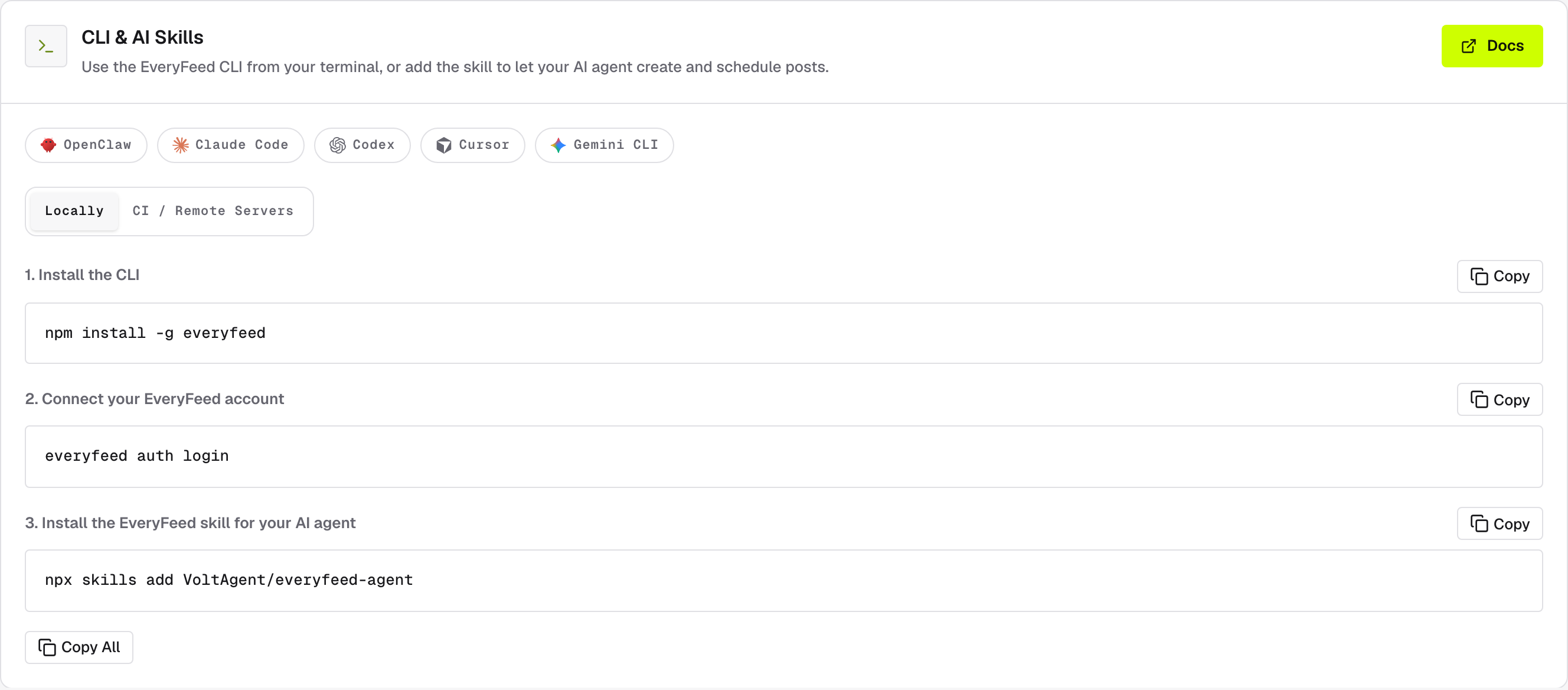
Install the CLI — the tool that talks to EveryFeed from your terminal:
npm install -g everyfeedConnect your EveryFeed account — this opens EveryFeed in your browser; sign in, choose the organization, and approve the device shown in your terminal:
everyfeed auth loginInstall the EveryFeed skill for OpenClaw — a separate piece: the playbook that teaches OpenClaw when and how to use that CLI:
npx skills add VoltAgent/everyfeed-agentAsk OpenClaw to list your EveryFeed channels. If it can't, check that the
skill is installed and everyfeed auth status reports your account.
Running in CI or on a remote server
No browser on the machine? The CI / Remote Servers tab of the CLI & AI Skills card
shows the same three steps with one swap: instead of everyfeed auth login,
authenticate with your workspace API key as an environment variable:
export EVERYFEED_API_TOKEN="YOUR_EVERYFEED_TOKEN"What to ask
List my connected channels in EveryFeed.Prepare a LinkedIn launch post in EveryFeed. Do not publish it yet.Adapt this copy for LinkedIn and X, then validate both drafts: [paste copy]Schedule the approved post for tomorrow at 10:00 in Europe/Istanbul.Find the next available slot and schedule the approved post there.For a client-specific request, include the client group name. For scheduling, include an exact date, time, and time zone whenever possible.
Review and approval
The skill validates drafts before anything is created, and post creation asks for explicit confirmation — nothing publishes until you approve it.
Keep access tokens out of chat
The CLI stores its credential after everyfeed auth login — never paste a
key into an OpenClaw conversation. If the key appears in a screenshot,
message, log, or public file, rotate it in
Settings → Developers → Access.