
Quick start
Connect a channel and publish your first post in minutes.
Zero to a scheduled post in three steps.
What you'll need
Admin access — only admins can connect channels.
1. Connect a channel
A channel is a social account you publish to — an X profile, a LinkedIn page, a subreddit.
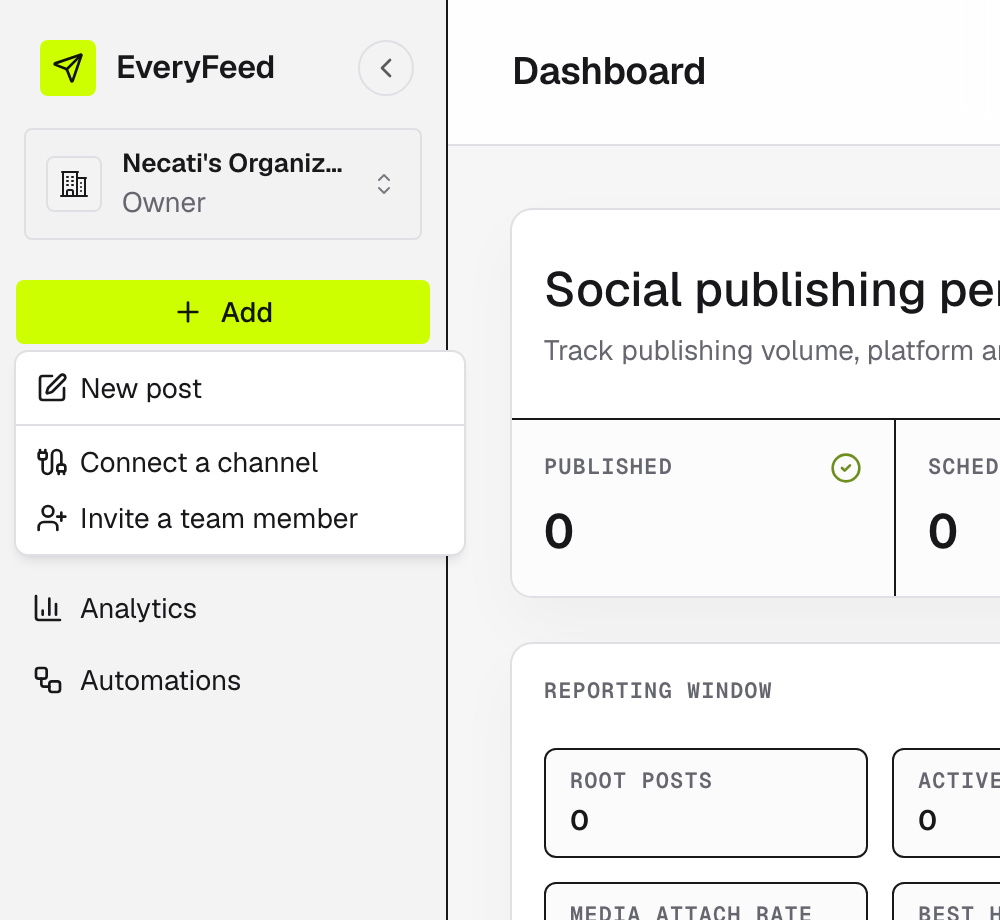
In the sidebar, click + Add → Connect a channel.
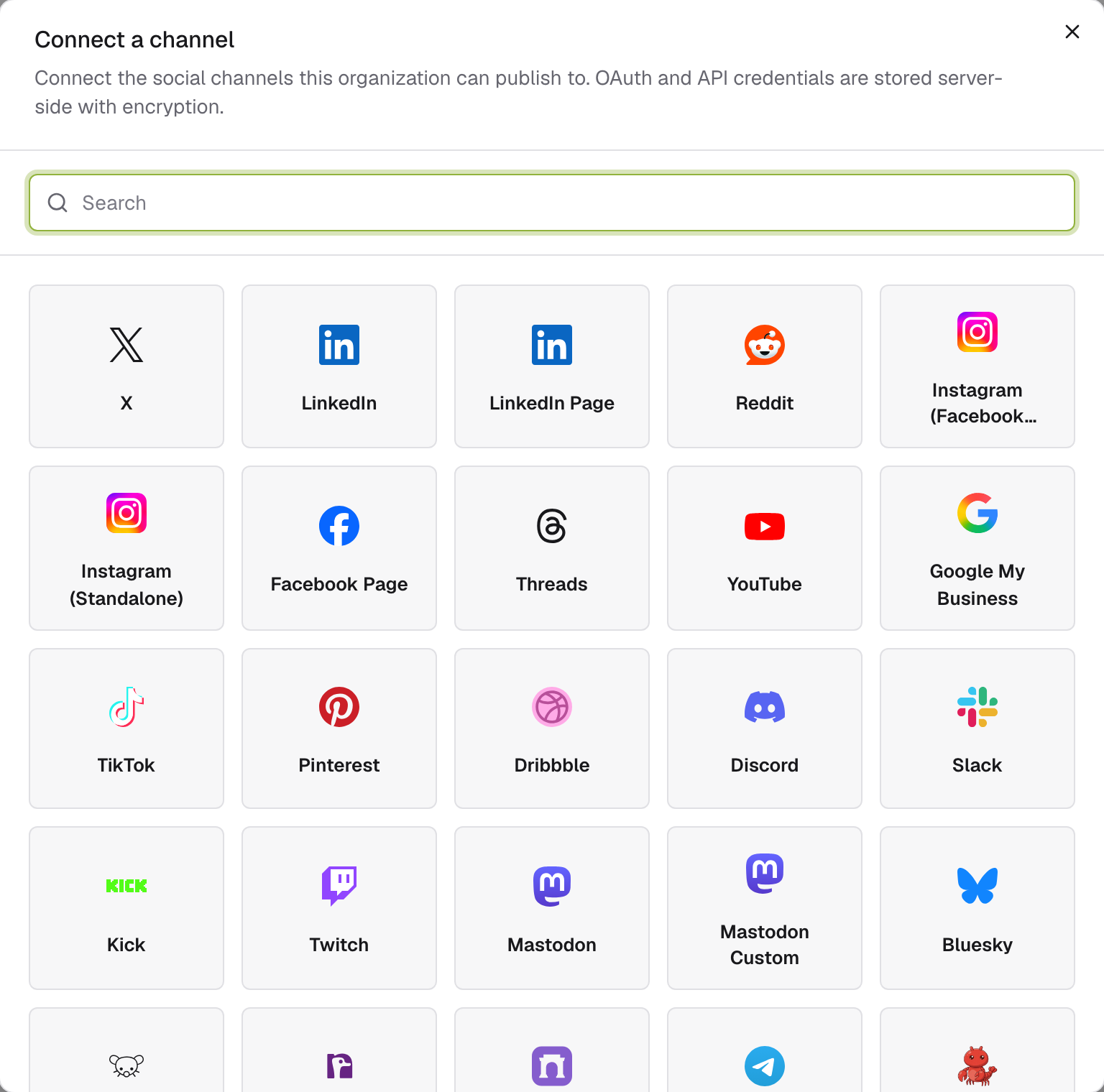
Pick a provider and click it. Sign in on the platform, approve access, and you're back in EveryFeed.
Some platforms manage several pages or channels under one login. If asked, click Continue setup and pick the exact destination.
The channel now shows Connected. A few providers use an API key instead of a sign-in — see custom credentials.
2. Write your first post
Click + Add → New post. The composer opens.
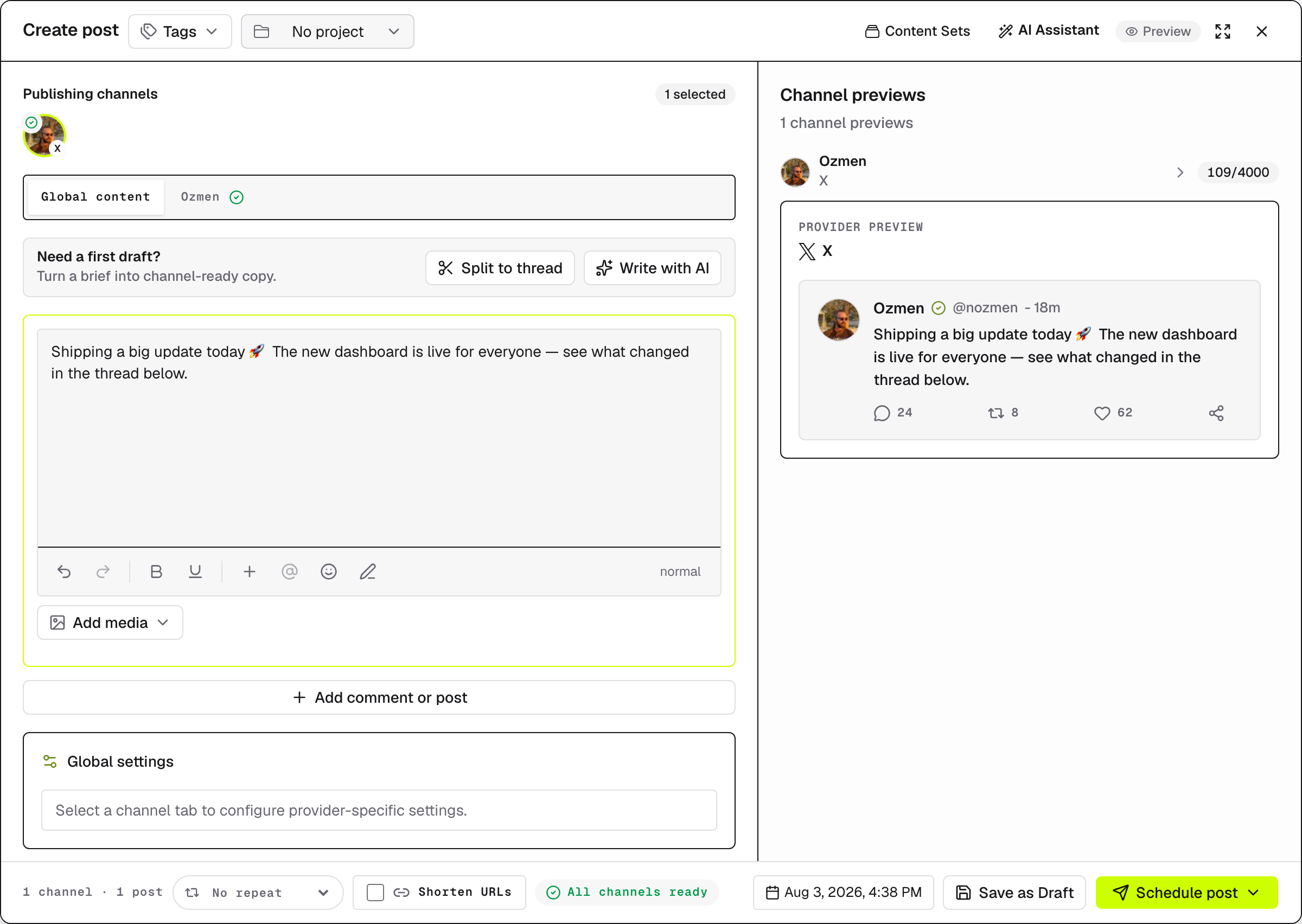
Select your channel(s) at the top, then write your text. Click Add media (or drag files in) for images and MP4 video. Need a first draft? Click Write with AI.
The composer checks your post against each channel's rules as you type — fix anything it flags before publishing.
Posting to several channels at once? You can customize the text per channel — see Post to multiple channels.
3. Schedule it
Click the date in the footer and pick a time — or hit Next available slot.
Click Schedule post. Done — it publishes automatically at that time. Not ready? Save as Draft keeps it off the calendar.
EveryFeed never publishes without your action. AI drafts also wait for your review first.