
Write a post
Create and edit posts in the composer.
Every post is written in the composer: pick channels, write once, adapt, and send it to the calendar. AI drafts open in the same window for review.
Open the composer
Three ways in — each starts you a step ahead.
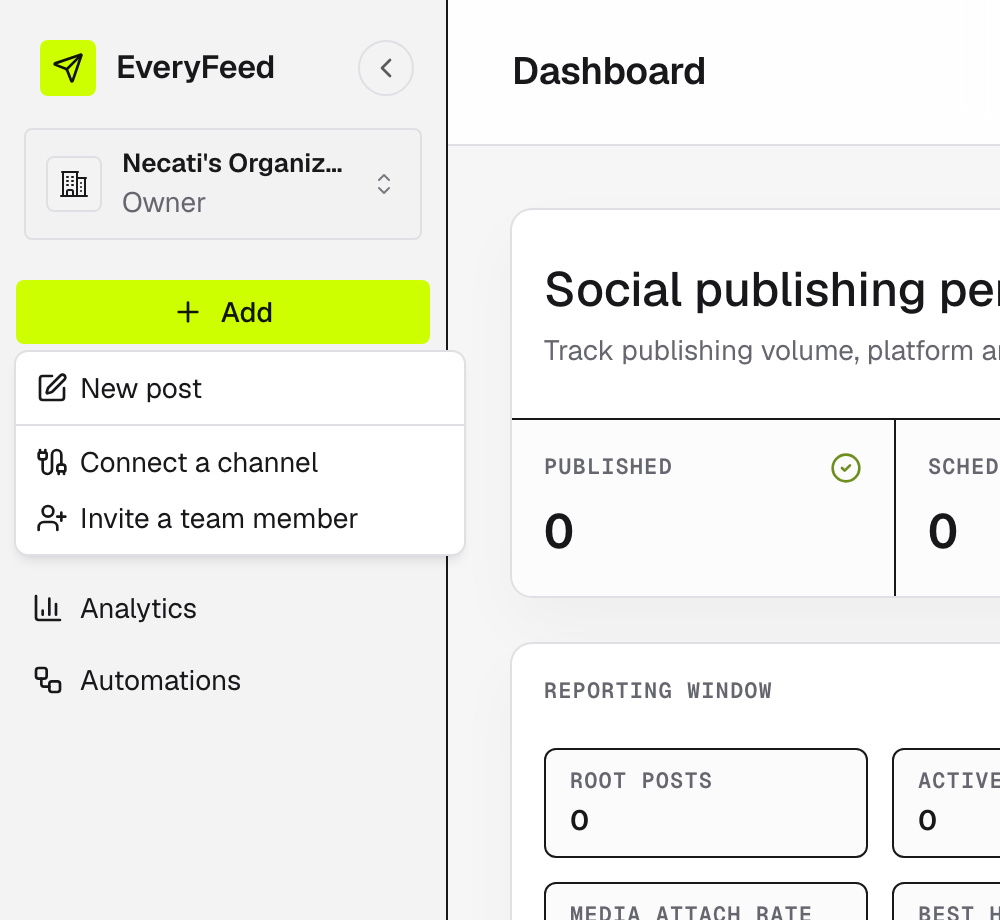
From anywhere: + Add → New post
The sidebar's + Add button works on every page and opens a blank composer.
From the Calendar
Click + New Post in the toolbar, or the + on any day — the post starts with that date already set.
From Connections
Click New post on a connected account row — the post starts with that channel already selected.
A quick tour
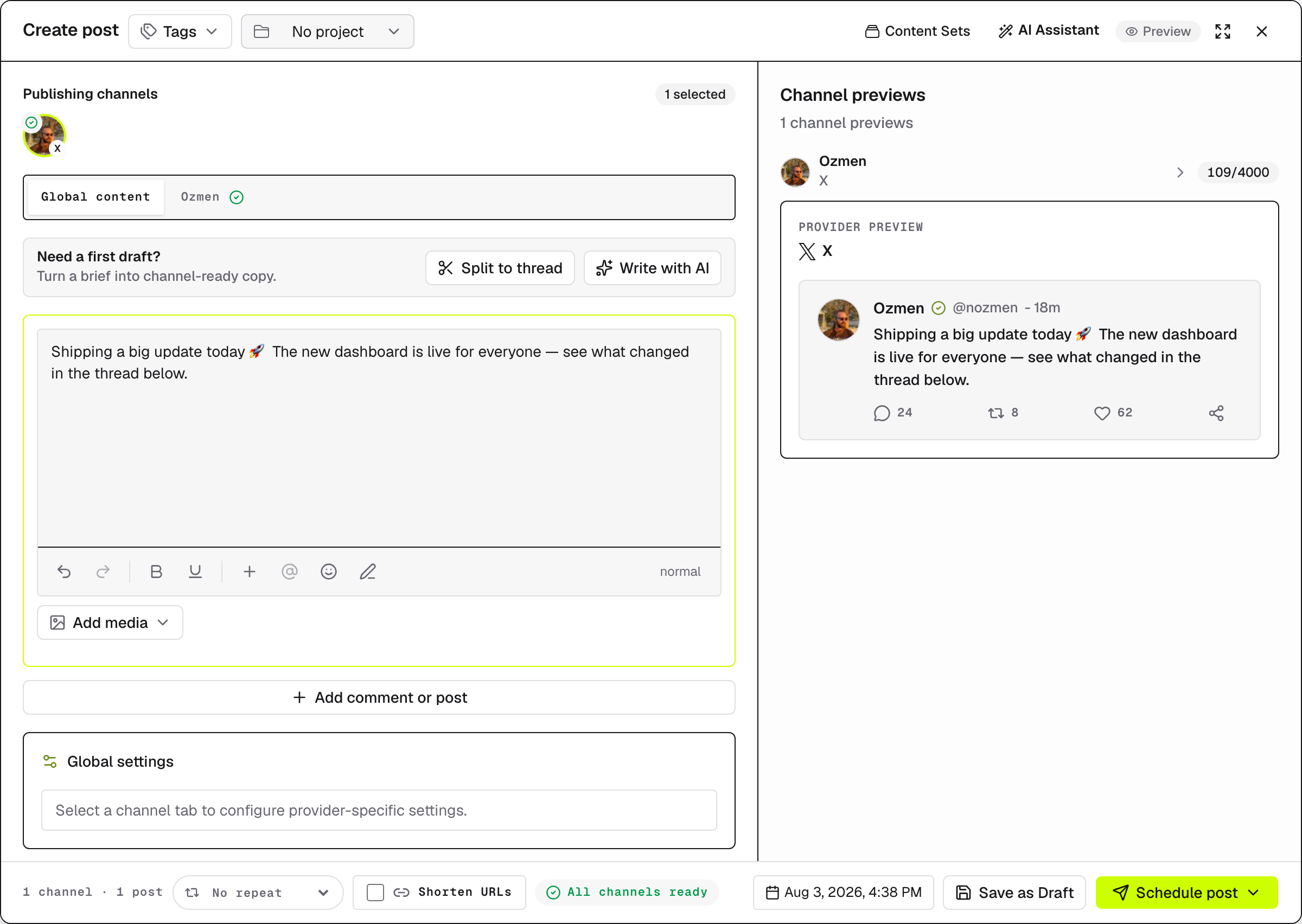
- Publishing channels (top) — select one or more connected accounts. What you write applies to all of them until you customize per channel.
- Editor — write your text. Write with AI turns a brief into a first draft; Split to thread breaks long copy into a thread.
- Add media — attach images or MP4 video, or just drag files in. See Media library.
- Add post / Add comment (below the editor) — chain follow-up posts into a thread. The label matches what the platform supports.
- Tags (header) — colored labels for organizing content. Search existing tags or create one with a name and color.
- Content Sets (header) — save the whole draft as a reusable template, or apply one you saved earlier. Details below.
- Global settings — provider-specific options for the selected channels. See Per-channel settings.
- Channel previews (right) — see how the post will look on each platform.
As you type, the composer checks your post against each channel's rules and flags anything that would block publishing — see Validation.
Finish the post
Everything ends in the footer:
| Action | What it does |
|---|---|
| Schedule post | Publishes automatically at the time you pick. |
| Post Now | Publishes immediately. |
| Save as Draft | Keeps it without a publish time. |
Two options sit next to them:
- Repeat — default is No repeat; pick a cadence from every day up to every month to make the post recurring.
- Shorten URLs — apply your organization's short-link tracking to this post.
Nothing publishes on its own — you schedule or publish from this footer, and AI drafts always land here for review first.
Organize with projects
Group work by initiative — a launch, a campaign, a client deliverable:
- Assign — the project picker sits in the composer header (it reads No project until you pick one).
- Filter — the calendar's All projects filter shows one initiative at a time.
- Manage — create, rename, or delete projects under Workspace → Projects; each shows its assigned posts and a View in calendar shortcut.
Reuse with Content Sets
A Content Set saves the whole draft as a reusable template: copy, thread, media, tags, selected channels, and per-channel overrides. Publishing decisions — date, repeat, draft/schedule choice — are never saved, so applying one prepares content but can't publish anything.
- Save — in the composer header, open Content Sets → Save as new content set and name it (e.g. "Weekly launch update").
- Apply — open Content Sets and pick a saved set. If your draft already has content, EveryFeed asks before replacing it. Disconnected channels or deleted media are skipped with a warning.
- Manage — rename or delete sets under Settings → Content Sets. Deleting a set doesn't touch posts already created from it.